新年在 ChatGPT 的帮助下解决了自己的一个需求:在手机端查看电脑上 org 的待办事项。效果如下(让 ChatGPT 生成的,实际比这个看着还舒服):
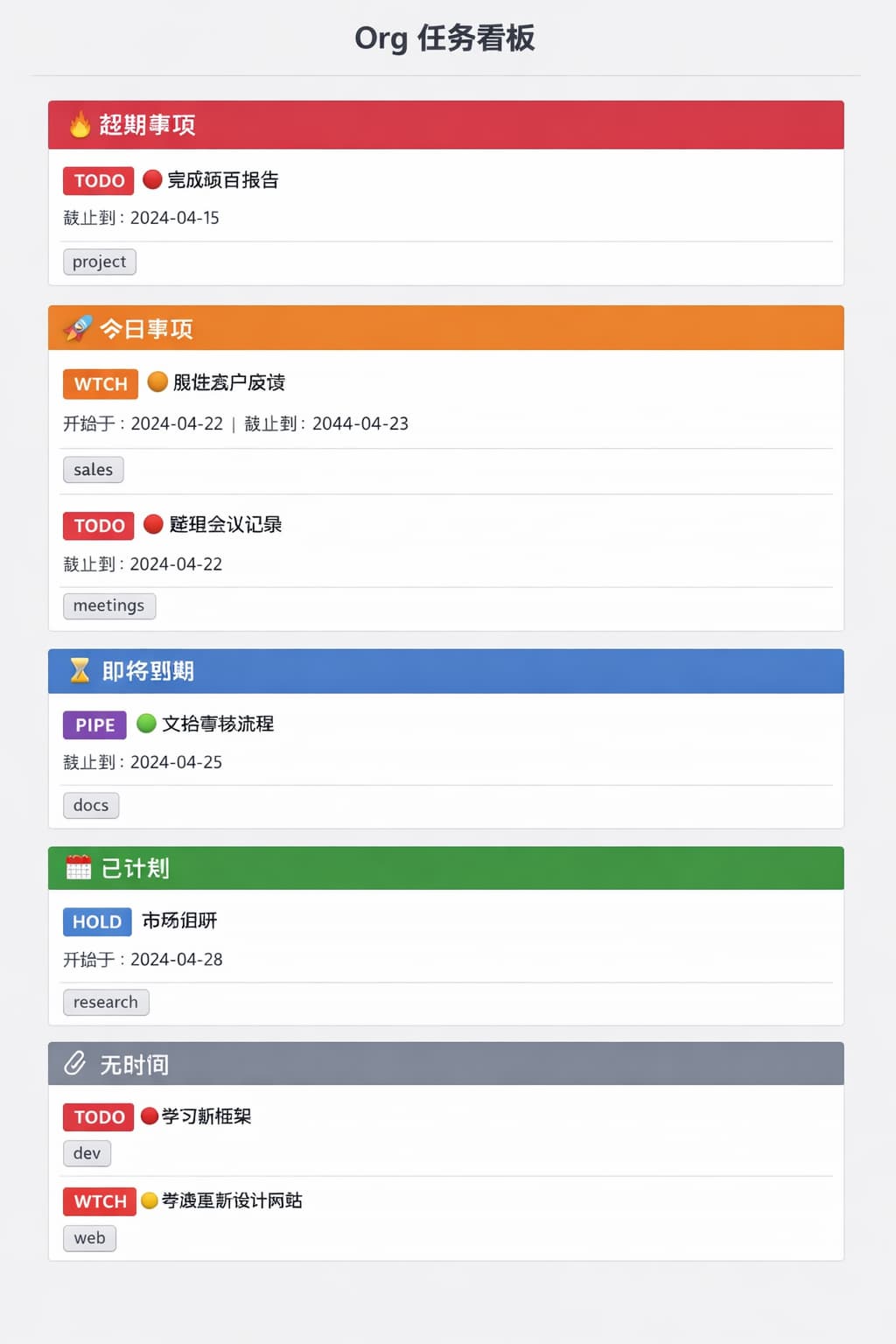
先说下踩过的坑:
-
orgzly: 它的 “同步” 不管是本地文件还是 WebDAV,即使手机上没有做任何事,都会更新文件至少是时间属性,导致无法获取 PC 端更新的 org 文件。看了看它 github repo 上几百个 issue, 放弃。
-
电脑端生成 ics 文件, 在手机端用app 同步:最大的问题是手机端只能在日历里看,跟日程混在一起看不清楚。或者要在手机端装 iCX5/DAVx5/Tasks.org 这样的 app,配合 NAS 配置 rationale 这样的 CalDAV docker。为了这么个小需要,要装这么多 app,配置这么复杂,最后放弃了。
-
org 输出 agenda view 的 html: 这样可行,就是需要不断缩小放大,略麻烦。想用 ChatGPT 帮助下用 Powershell 美化 org 生成的 html。改了很久都没有达到能接受的形态,只好放弃。
突然意识到还不如用 PowerShell 直接解析 org 文件,直接生成手机友好的美化的 html. 于是有了这个
powershell 脚本
param (
    [string]$OrgDir  = "C:\Users\pinac\Documents\emacs\org",
    [string]$OutDir  = "C:\Users\pinac\Documents\emacs\org-sync",
    [string]$OutFile = "pina-org-agenda.html"
)

# =============================
# 准备输出目录
# =============================
if (-not (Test-Path $OutDir)) {
    New-Item -Path $OutDir -ItemType Directory | Out-Null
}
$HtmlFile = Join-Path $OutDir $OutFile
$LogFile  = Join-Path $OutDir "pina-org-agenda-html.log"

"[$(Get-Date -Format 'yyyy-MM-dd HH:mm:ss')] 任务开始" | Out-File -FilePath $LogFile -Append

# =============================
# TODO 定义
# =============================
$TodoKeywords = @('TODO','WTCH','HOLD','PIPE')
$DoneKeywords = @('DONE','TRNS','ABRT')

$TodoPattern = ($TodoKeywords -join '|')
$DonePattern = ($DoneKeywords -join '|')

# =============================
# 时间基准
# =============================
$Today = (Get-Date).Date
$UpcomingLimit = $Today.AddDays(7)

# =============================
# 任务容器
# =============================
$Tasks = @()

# =============================
# 扫描 org 文件
# =============================
Get-ChildItem -Path $OrgDir -Recurse -Filter *.org | ForEach-Object {

    $Source = [System.IO.Path]::GetFileNameWithoutExtension($_.Name)
    $Lines  = Get-Content $_.FullName -Encoding UTF8

    $Current = $null

    foreach ($Line in $Lines) {

        # 新 headline 出现 → 先收集旧任务
        if ($Line -match '^\*+\s+' -and $Current) {
            $Tasks += $Current
            $Current = $null
        }

        # DONE 类
        if ($Line -match "^\*+\s+($DonePattern)\s+") {
            $Current = $null
            continue
        }

        # TODO / WTCH / HOLD / PIPE
        if ($Line -match '^\*+\s+(' + $TodoPattern + ')\s*(?:\[#([A-C])\])?\s*(.*)$') {
            $Current = @{
                State     = $Matches[1]
                Priority  = if ($Matches[2]) { $Matches[2] } else { "" }
                Title     = $Matches[3].Trim()
                Source    = $Source
                Scheduled = $null
                Deadline  = $null
            }
            continue
        }

        if (-not $Current) { continue }

        # SCHEDULED
        if ($Line -match 'SCHEDULED:\s*<([^>]+)>') {
            if ($Matches[1] -match '(\d{4})-(\d{2})-(\d{2})') {
                $Current.Scheduled = Get-Date "$($Matches[1])-$($Matches[2])-$($Matches[3])"
            }
        }

        # DEADLINE
        if ($Line -match 'DEADLINE:\s*<([^>]+)>') {
            if ($Matches[1] -match '(\d{4})-(\d{2})-(\d{2})') {
                $Current.Deadline = Get-Date "$($Matches[1])-$($Matches[2])-$($Matches[3])"
            }
        }
    }

    # 文件结束时,别忘了最后一个任务
    if ($Current) {
        $Tasks += $Current
    }
}

# =============================
# 分类任务
# =============================
$Overdue   = @()
$TodayList = @()
$Upcoming  = @()
$Scheduled = @()
$Someday   = @()

foreach ($T in $Tasks) {

    # 超期事项:deadline 在今天之前
    if ($T.Deadline -and $T.Deadline -lt $Today) {
        $Overdue += $T
        continue
    }

    # 今日事项:scheduled <= today 或 deadline = today
    if (
        ($T.Scheduled -and $T.Scheduled -le $Today) -or
        ($T.Deadline  -and $T.Deadline -eq $Today)
    ) {
        $TodayList += $T
        continue
    }

    # 即将到期(7 天内)
    if ($T.Deadline -and $T.Deadline -le $UpcomingLimit) {
        $Upcoming += $T
        continue
    }

    # 已计划(未来 scheduled)
    if ($T.Scheduled) {
        $Scheduled += $T
        continue
    }

    # 无时间
    $Someday += $T
}

# =============================
# HTML 样式
# =============================
$HtmlHeader = @"
<!DOCTYPE html>
<html>
<head>
<meta charset='utf-8'>
<meta name='viewport' content='width=device-width,initial-scale=1'>
<title>Org Dashboard</title>
<style>
body{font-family:sans-serif;background:#f7f7f7;padding:1rem}
h1{text-align:center}
h2{margin-top:1.2rem;border-bottom:2px solid #ccc}
.task{background:#fff;padding:.6rem;border-radius:.5rem;margin:.5rem 0;box-shadow:0 1px 3px rgba(0,0,0,.1)}
.title{font-weight:bold}
.meta{font-size:.8rem;color:#555;margin-top:.2rem}
.state{padding:.1rem .3rem;border-radius:.3rem;color:#fff;font-size:.75rem}
.state.TODO{background:#e74c3c}
.state.WTCH{background:#f39c12}
.state.HOLD{background:#3498db}
.state.PIPE{background:#9b59b6}
.prio{margin-right:.3rem;font-size:.75rem;padding:.1rem .3rem;border-radius:.3rem;color:#fff}
.prio.A{background:#c0392b}
.prio.B{background:#d35400}
.prio.C{background:#27ae60}
.file{margin-top:.3rem;font-size:.7rem;background:#eee;display:inline-block;padding:.1rem .3rem;border-radius:.3rem}
.section-overdue{color:#c0392b}
.section-today{color:#e67e22}
.section-upcoming{color:#2980b9}
.section-scheduled{color:#16a085}
.section-someday{color:#7f8c8d}
a{color:#2980b9;text-decoration:none}
a:hover{text-decoration:underline}
</style>
</head>
<body>
<h1>Org 任务看板</h1>
"@

# =============================
# Org link 转 HTML
# =============================
function Convert-OrgLink($text) {
    # 非贪婪匹配描述部分
    $pattern = '\[\[([^\]]+?)\]\[(.+?)\]\]'
    return ($text -replace $pattern, '<a href="$1" target="_blank">$2</a>')
}

# =============================
# 渲染分区
# =============================
function RenderSection($Title,$Class,$List) {
    if ($List.Count -eq 0) { return "" }
    $out = "<h2 class='$Class'>$Title</h2>`n"
    foreach ($T in $List) {
        # 根据优先级设置符号和颜色
        $prioSymbol = ""
        $titleStyle = ""
        switch ($T.Priority) {
            "A" { $prioSymbol = "🔴"; $titleStyle = "color:#c0392b;font-weight:bold" }
            "B" { $prioSymbol = "🟠"; $titleStyle = "color:#d35400;font-weight:bold" }
            "C" { $prioSymbol = "🟢"; $titleStyle = "color:#27ae60;font-weight:bold" }
            default { $titleStyle = "font-weight:bold" }
        }

        $s = "<span class='state $($T.State)'>$($T.State)</span>"
        $m = @()
        if ($T.Scheduled) { $m += "开始于:$($T.Scheduled.ToString('yyyy-MM-dd'))" }
        if ($T.Deadline)  { $m += "截止到:$($T.Deadline.ToString('yyyy-MM-dd'))" }
        $meta = ($m -join " | ")

        $out += "<div class='task'>
                 <div class='title' style='$titleStyle'>$prioSymbol $(Convert-OrgLink $T.Title)</div>
                 <div class='meta'>$s $meta</div>
                 <div class='file'>$($T.Source)</div>
                 </div>`n"
    }
    return $out
}

$HtmlBody  = RenderSection "🔥 超期事项"   "section-overdue"   $Overdue
$HtmlBody += RenderSection "🚀 今日事项"   "section-today"     $TodayList
$HtmlBody += RenderSection "⏳ 即将到期"   "section-upcoming"  $Upcoming
$HtmlBody += RenderSection "📅 已计划"     "section-scheduled" $Scheduled
$HtmlBody += RenderSection "📎 无时间"     "section-someday"   $Someday

$HtmlFooter = "</body></html>"

# =============================
# 写入文件
# =============================
Set-Content -Path $HtmlFile -Value ($HtmlHeader + $HtmlBody + $HtmlFooter) -Encoding UTF8
Write-Host "✅ 已生成任务看板:$HtmlFile"

"[$(Get-Date -Format 'yyyy-MM-dd HH:mm:ss')] 任务完成" | Out-File -FilePath $LogFile -Append
使用方法:
- 新建一个 script.ps1 文件,把脚本内容粘贴进去,修改默认目录名和文件名,修改 TODO 和 DONE 分类关键字。
- 手工执行脚本,或者在 windows 计划任务里添加自动执行。我目前设置了每天自动扫描 org 文件夹生成 html.
- 同步生成的html到手机看,或者同步到NAS等线上途径看。我是直接用浏览器打开 NAS 的 WebDAV 链接的方式。
修改优化: 把整个脚本粘贴到 ChatGPT 等主流 AI 中,说明需求,让 AI 更新脚本。
折腾心得:AI 在生成 PowerShell 脚本、处理文本文件、生成 html 方面的能力比其生成 elisp 运用 emacs 原生函数方面可能要高一个数量级。
 看来要避免出现 删除 操作。。。
 反正也是一样的内嵌 CSS 和 JS,然后用计划任务让 Emacs 定时执行 elisp